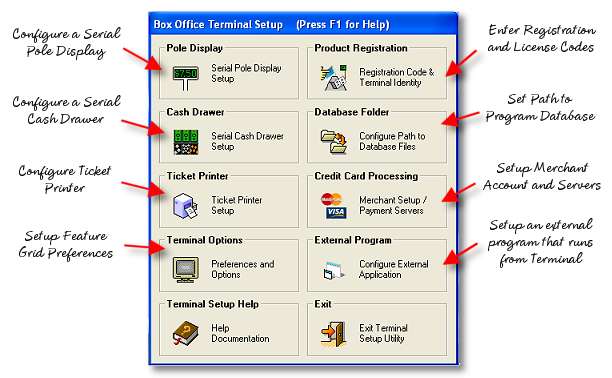
For every terminal installed there will be a Terminal Setup Utility that is used to configure settings for the individual terminal workstation. These settings are stored in the Windows Registry on the workstation rather than in the master program database because these settings for the most part are unique to the particular computer. For the manager's office computer, only the data path and registration information are necessary. Terminal Identity Codes only apply to selling terminals.
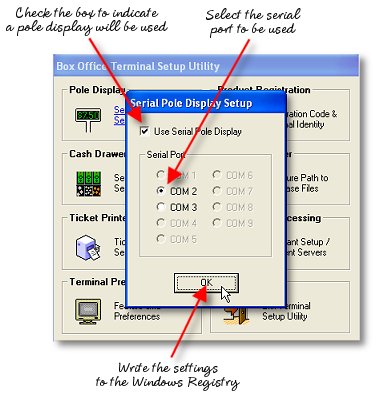
The pole display must be configured for the proper port in order to work because the software must write data to this port for the device to display to the customer the intended information. The software will try to identify what ports are present on your system. It will be up to you to determine if the port selected is available and working properly.
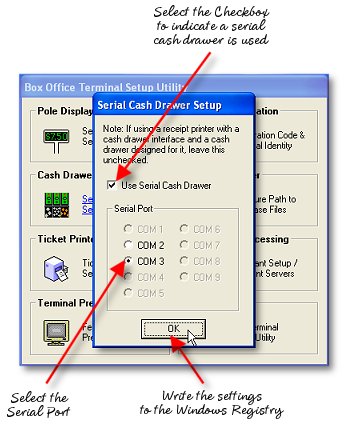
If you are using an Epson or Citizen or some other receipt printer with a recepticle for a cash drawer and have a cash drawer designed to work in conjunction with a printer, this setup does not apply to you. A serial cash drawer is used when no such printer connection exists and the user has a stand-alone cash drawer designed to plug directly into the computer via a serial port.
If you are using an Epson or Citizen or some other receipt printer, select the ESC/POS printer option. If using a Boca, Practial Automation, Datamax or some other FGL (Friendly Ghost Language) printer, select the FGL printer option. A sample ticket is displayed. With the receipt printer, a stub option is also available.
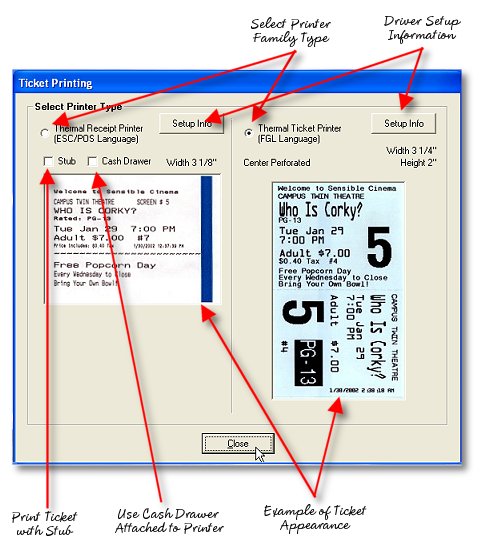
When using the printer you have selected, you just install the appropriate Windows printer drivers for the printer. On the distribution CD-ROM are many of the drivers for the popular reciept printer brands. For the Boca, Practical Automation and Datamax printers and other FGL printers, simply install the "Generic/Text Only" driver included with your Windows Operating System. If you install another driver from the manufacturer of your FGL language printer for one of the other languages supported (such as PCL and Windows True-Type Fonts) there will be a considerably greater time required to print your tickets and the raw FGL codes will be printed on your tickets as well. In order to provide the fastet possible printing, we have opted to use the internal "hardware" fonts rather than the downloadable "software" fonts those drivers will be addressing.... so be certain you install the generic text font rather than any others shipped with your FGL printer.
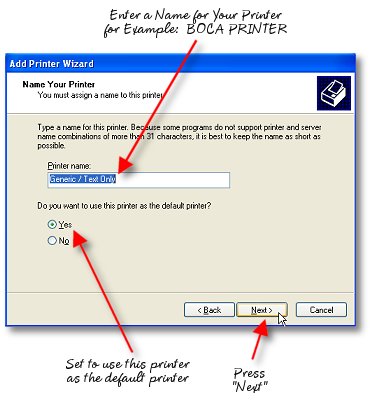
The ticket printer used must be set as the default printer on your system. When printing your reports at night (if using the same computer you sell tickets from) it will be necessary to select the appropriate printer for your reports from the print dialog box.
To install a driver for a receipt printer, locate the appropriate driver off of the CD-ROM or download from the manufacturer web site. Follow the installation steps provided with those driver installation kits.
To install the "Generic/Text Only Driver" on your system, follow these steps:
1. Click 'START'

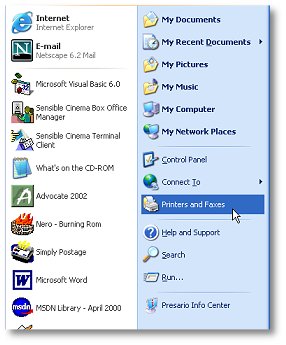
2. Choose "Printers and Faxes" (under "Settings" in Windows 2000)
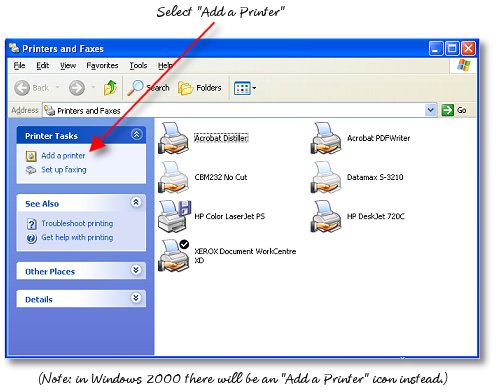
3. Select "Add a Printer" from the category view in Windows XP or double-click the "Add a Printer" icon in other Windows versions.
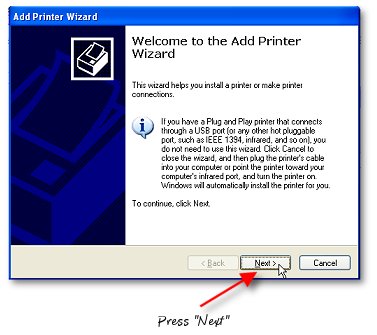
4. Press "Next"
5. Select "Local Printer" and de-select the automatically detect check box then press "Next."
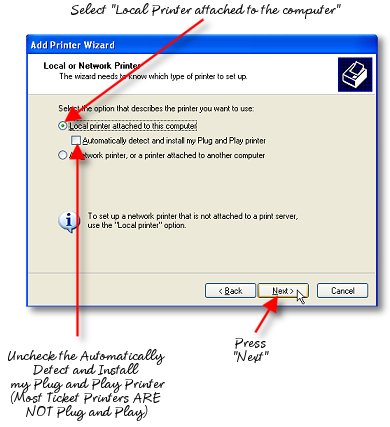
6. Select the Printer Port (usually LPT1) and press "Next."
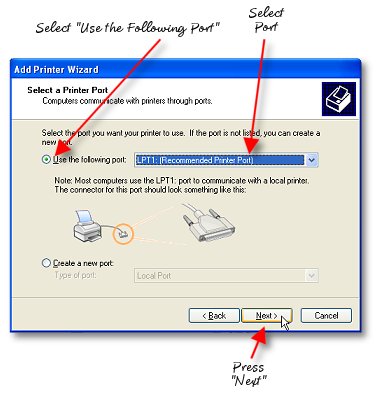
7. Select "Generic" from Ticket Manufacturers and "Generic/Text Only" from Printers.
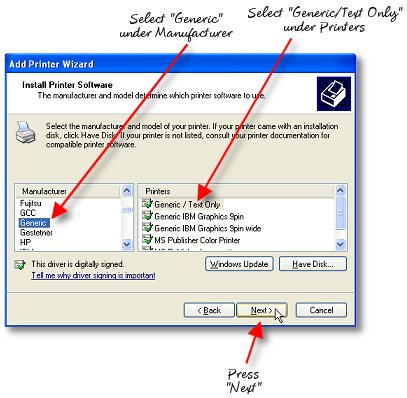
8. Name the printer and press "Next."
9. Skip printing test ticket.
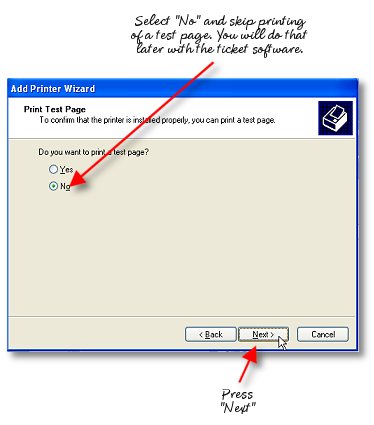
10. Completed. Press "Finish."
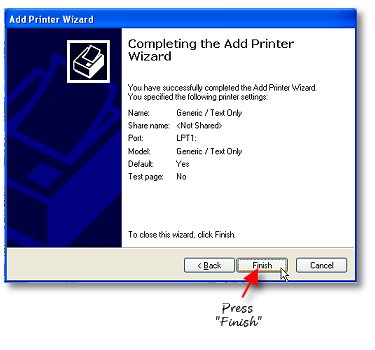
You can change the color and font for the ticketing terminal's feature grid to your liking using this utility. To resize the grid, that setting is adjustable from within the terminal itself. These settings are here to prevent the cashier from changing these settings.
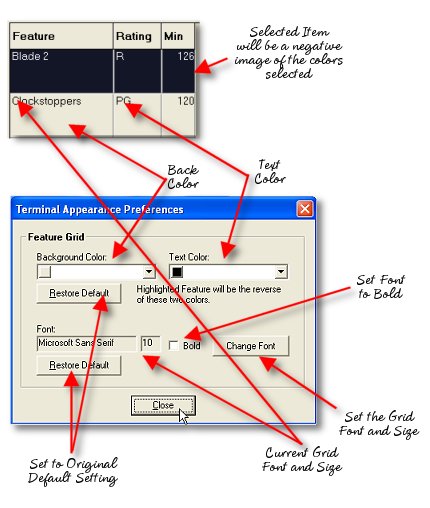
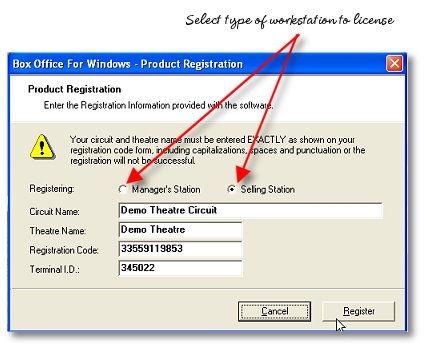
Once you have received your licensing instructions, enter the appropriate information in the registration utility for each individual workstation. Note: Terminal Identity numbers are only entered for Terminal workstations. The Manager's station only needs the remainder of the licensing information.
REGISTRATION INSTRUCTIONS PROVIDED UPON LICENSING:
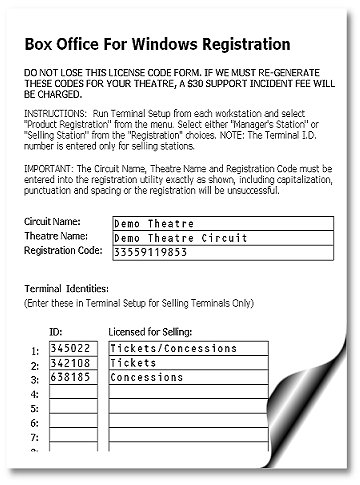
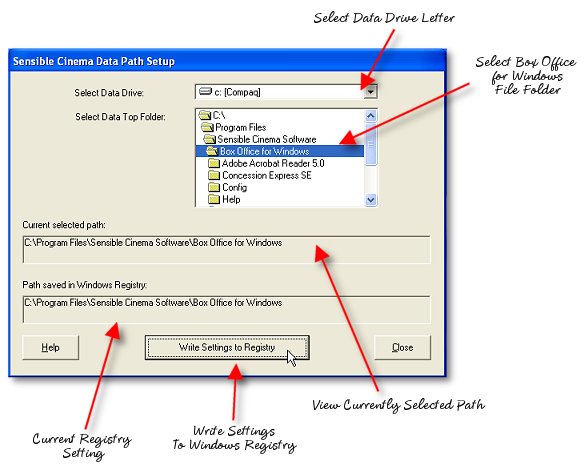
The path to the computer containing the management program and associated database files must be pointed to for each workstation. Instead of pointing to a specific data folder, always set the path to the top level Box Office for Windows folder so that the folders under this folder are properly recognized. If you have mapped a drive letter to the Box Office for Windows folder on another computer or server, you need only browse to that drive letter since the letter itself represents the Box Office for Windows folder. Under the drive letter mapped will be all of the appropriate sub folders found on the server under Box Office for Windows. Pass this information to your network specialist and he will understand how to setup your network.
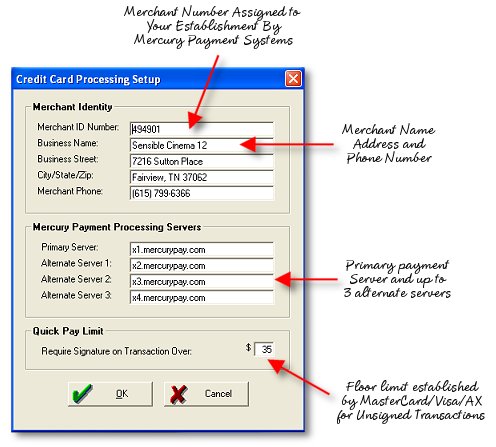
The information from Mercury Payment Systems with regard to your merchant number and payment servers will be entered here. This must be done on every terminal set up to accept credit cards through this merchant account.
Information About Visa/Mastercard Convenience Programs
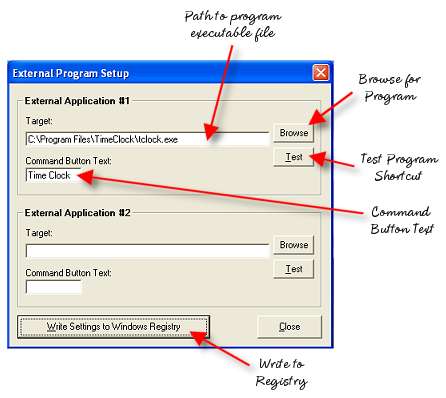
Up to two external programs can be executed from the Terminal Menu via two configurable command buttons. These can be used to execute a time clock program or other external application. The external applications must be set up on each individual terminal as these settings are saved to that computer's Windows Registry.
For Quick Serve Restaurants, (QSRs) & Movie Theatres
The purpose of this program is: to expedite small ticket- low risk credit card transactions by not requiring customer signatures for transactions under $35.00; and to lower the cost of processing small ticket transactions.
Since Visa USA and Mastercard International have different programs, I will describe each program separately and how they blend together.
Without these Convenience programs QSRs and movie theatres would be setup and priced as an ordinary retail establishment. The cost to the banks/processors (Interchange Rate) would be 1.38% + $0.05/transaction for Visa and 1.455% + $0.10/transaction for Mastercard, (Raised to 1.475% in April '02)
With this optional convenience program, Mastercard's "Quick Payment Service" has eliminated the 10 cent transaction fee and raised the interchange rate to 1.895% for all qualifying transactions. Visa's "Swipe and Go" convenience program has the same Interchange rate as their retail Interchange program.
For Mastercard transactions to qualify, the merchant needs to be registered for this program and all sales need to be authorized. Cards under $25 for fast food or under $35 for movies, that are swiped through a cardreader, do not require a signature from the cardholder. Authorized amounts over the $25 and $35 thresholds qualify for the retail interchange if the cards have been swiped. Technically, signatures should be obtained. A receipt must be given to the cardholder upon request. Although no signatures are taken from cardholders, as long as a card has been swiped through a terminal or cardreader, merchants registered for this program have added chargeback protection.
Visa transactions also need to be swiped in order to qualify for the above rate. Similar to the Pay-at-the Pump gasoline program, signatures are not required. Although the merchants are at greater risk for chargebacks without signatures, The overall risk of chargebacks, on small transactions is minimal. Visa requires that a receipt be given to the customer.
Summary
On swiped, authorized credit card transactions that are under $35.00, the convenience interchange is less expensive than retail interchange. Omitting the signature process greatly reduces the transaction time. The risk of chargebacks is minimal. Since Visa requires a receipt be given to the customer, merchants should have a policy of giving receipts to the customer, for both Visa and Mastercard.